

Greenhouse
This guide will help you to connect to greenhouse account via Knit.
You can connect to Greenhouse using Knit via two methods:
If you are a Greenhouse Partner, refer to Greenhouse Partnership Auth Mechanism. Otherwise, for direct integration, use the process below.
Generating Greenhouse Client Credentials:
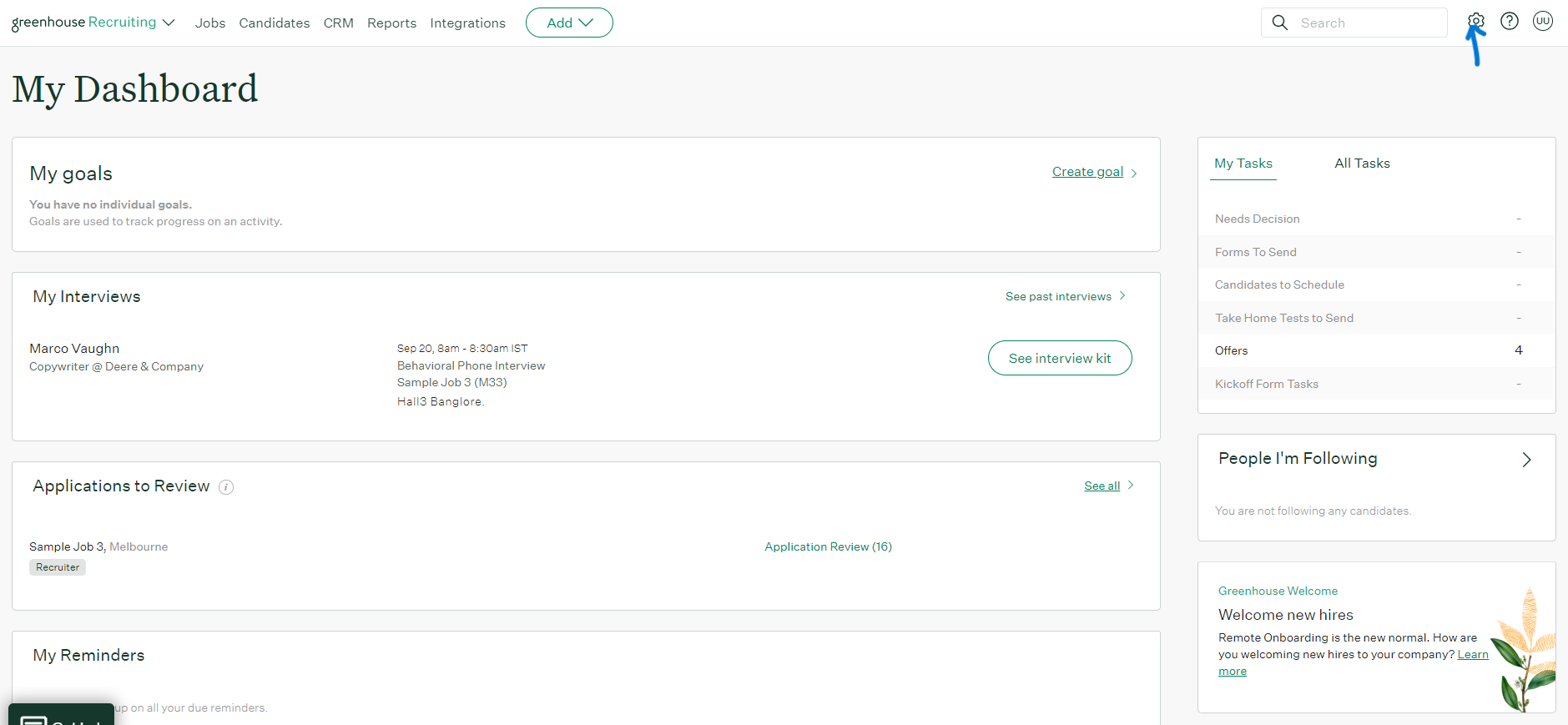
- Login as administrator and click on the settings icon on upper left corner of your page.
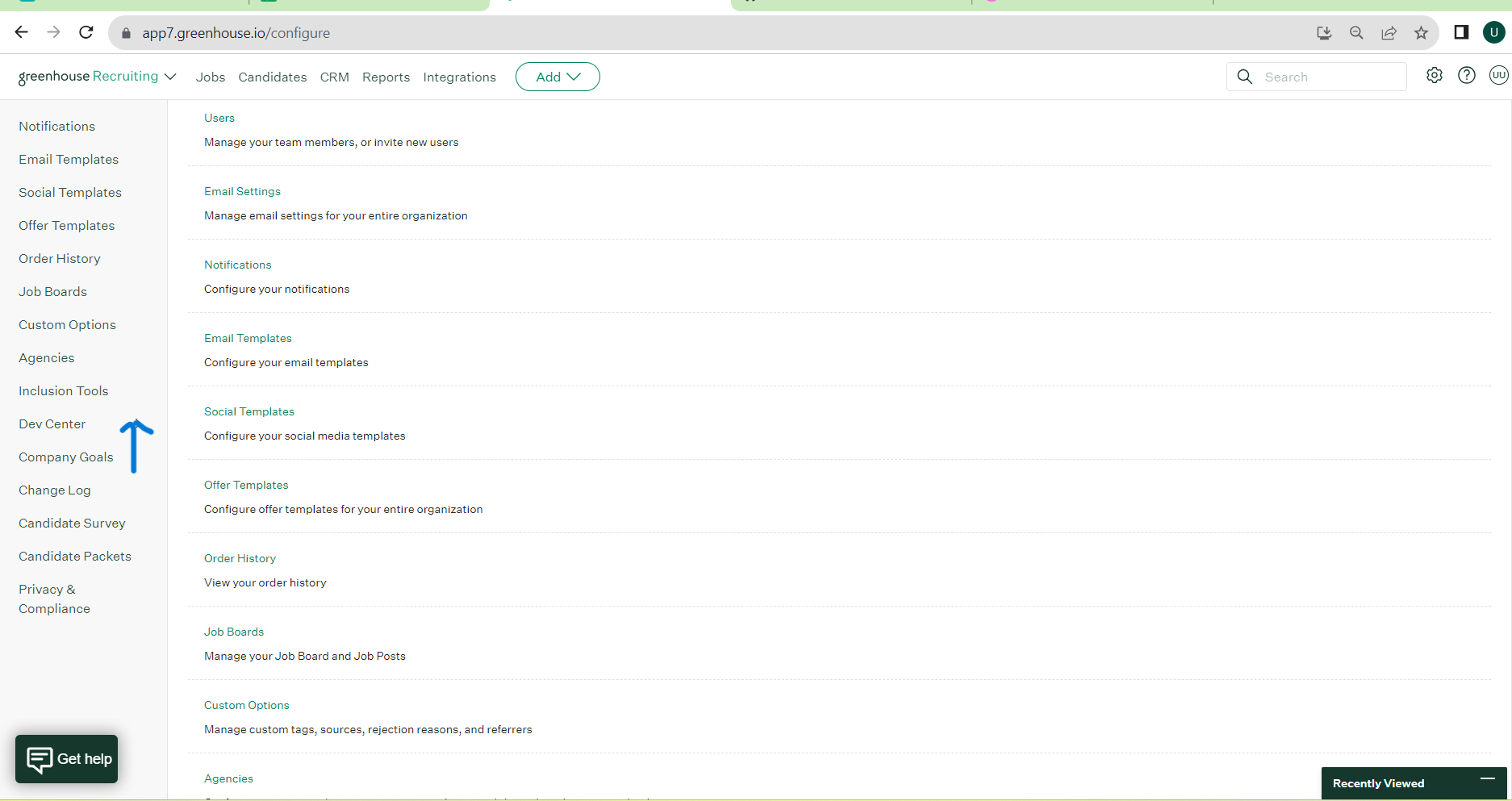
- Click on Dev Center in the left menu.
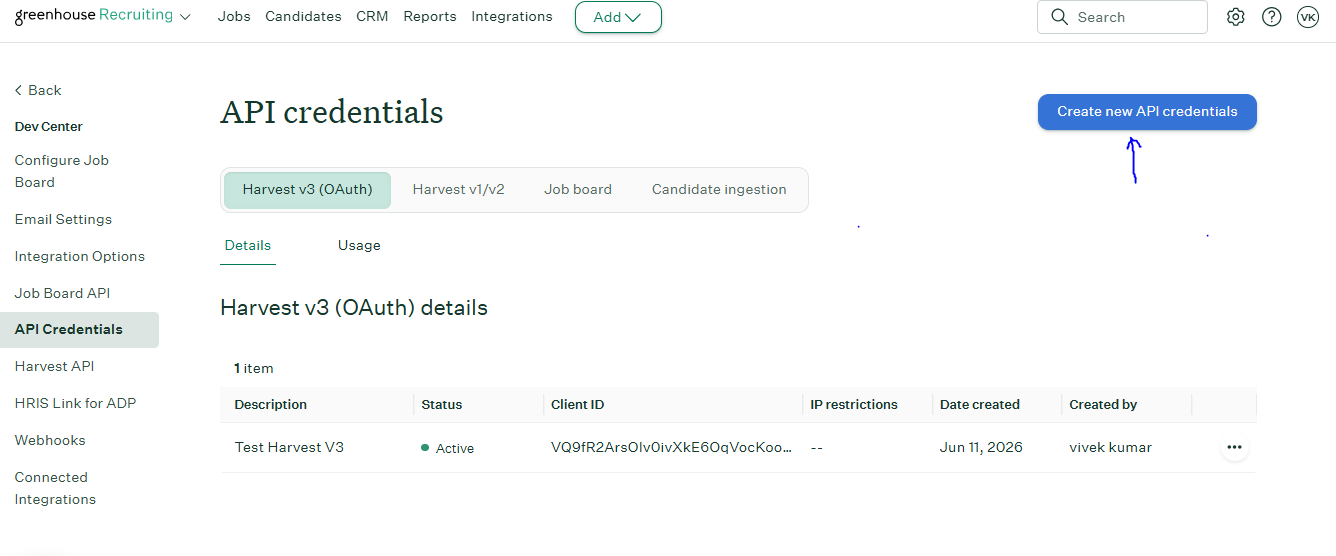
- Select API Credential Management , then select Harvest v3 (OAuth), and click on the Create New API credentials.
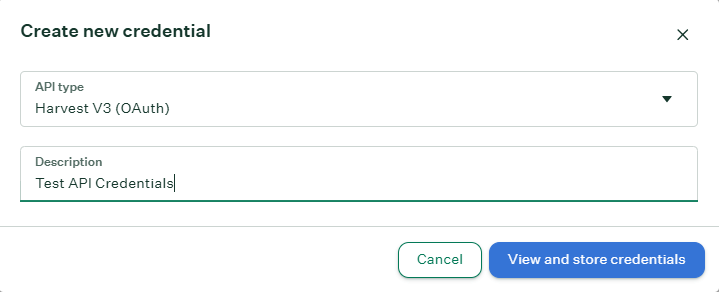
- Select Harvest v3 (OAuth) for the API Type. Enter a description for the Client credentials and click View and store credentials.
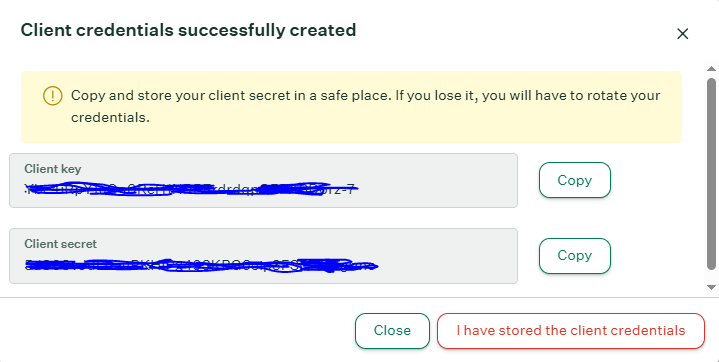
- Click the Copy button, and paste the Client credentials below. Next, click I have stored the client credentials.
- Either click Select All or select the relevant permissions required as per your need. See the below permissions list for Knit data models.
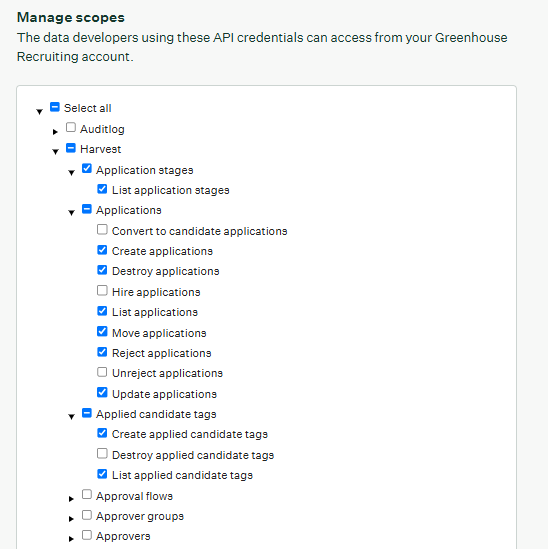
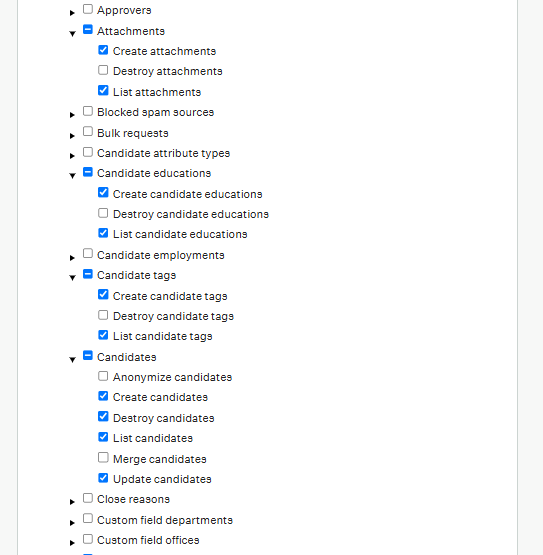
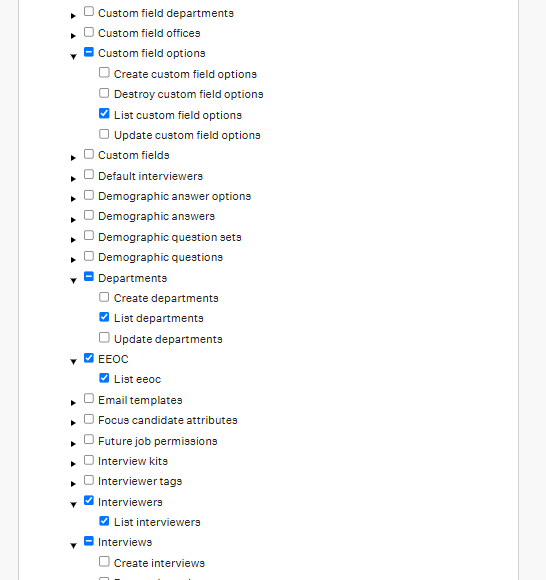
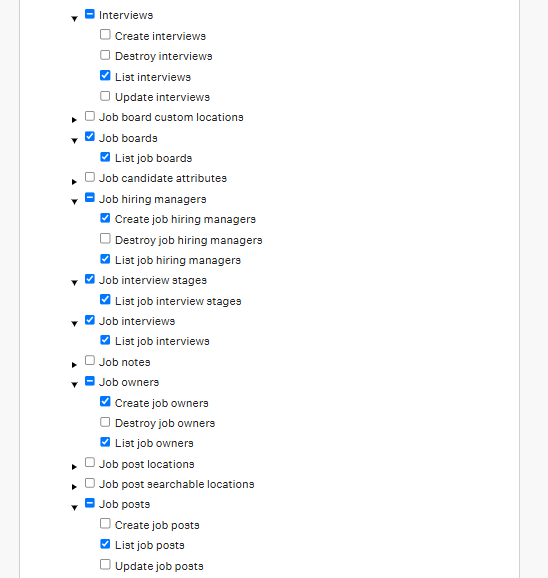
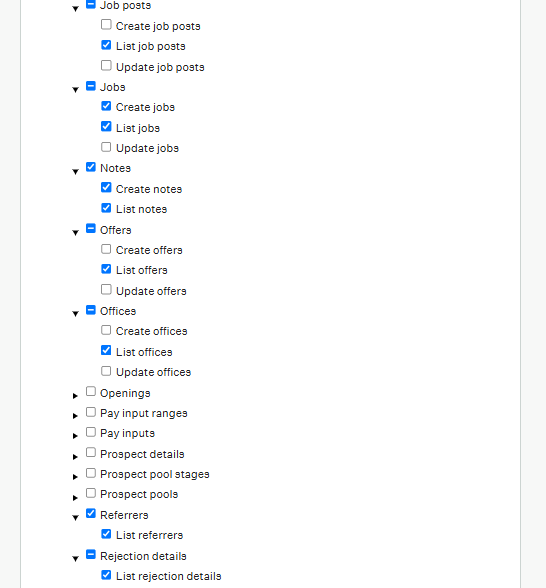
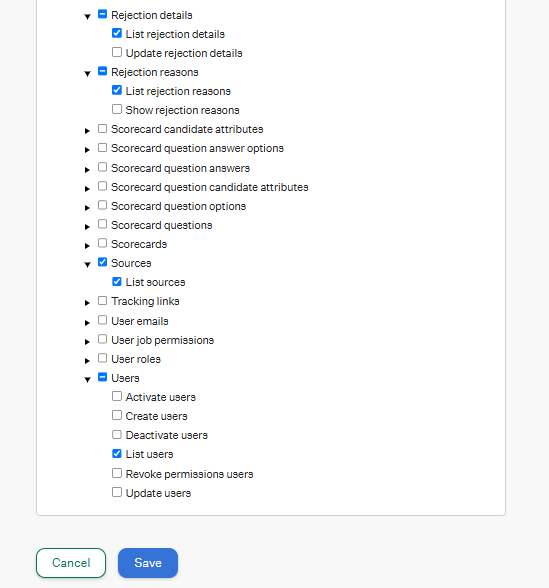
- Once permissions are enabled. These Client credentials are good to used with Knit in Authenticating with Greenhouse.
Managing Permissions
If you plan to enable only fewer permissions for the use cases you will be using through knit, below is the context of permissions that are used by the respective Knit Use Case.
ats_jobssync :- Job interview stages - List job interview stages
- Jobs - List Jobs
- Job boards - List job boards
- Job Posts - List Job Posts
- Departments - List Departments
- Offices - List offices
- Job hiring managers - List job hiring managers
- Job owners - List job owners
- Users - List users
ats_applicationssync:- Applications - List applications
- Candidates - List candidates
- Application stages - List application stages
- Sources - List sources
- Interviews - List interviews
- Job interviews - List job interviews
- Interviewers - List interviewers
- Offers - List offers
- Attachments - List attachments
- Rejection details - List rejection details
- Rejection reasons - List rejection reasons
- Referrers - List referrers
- Users - List users
ats_candidatessync- Candidates - List candidates
- Applications - List applications
- Candidate educations- List candidate educations
- Attachments - List attachments
- Similarly for other APIs add the relevant permissions that suits for the use case your are trying.
- For Example: If you want use list eeoc or get eeoc apis via Knit then enable, EEOC - List eeoc in permissions for your Client credentials.
Updated 26 days ago
Did this page help you?