

Enum Mapping Presets
PrerequisitesDo take a look at Starting Syncs to know more about syncs and getting started with fetching data from apps
- Knit provides unified enum mappings to standardize field values across different applications. However, an application's native field values may not always map to the desired standard enum values.
- Enum Mapping Presets allow you to override Knit’s default enum mappings by mapping a native field value to one of the predefined standard enum values supported by Knit.
- You can configure mappings at either the account level or the app level, depending on the scope in which you want the override to apply.
How to Create an Enum Mapping Preset
I. Knit dashboard
Knit dashboard-
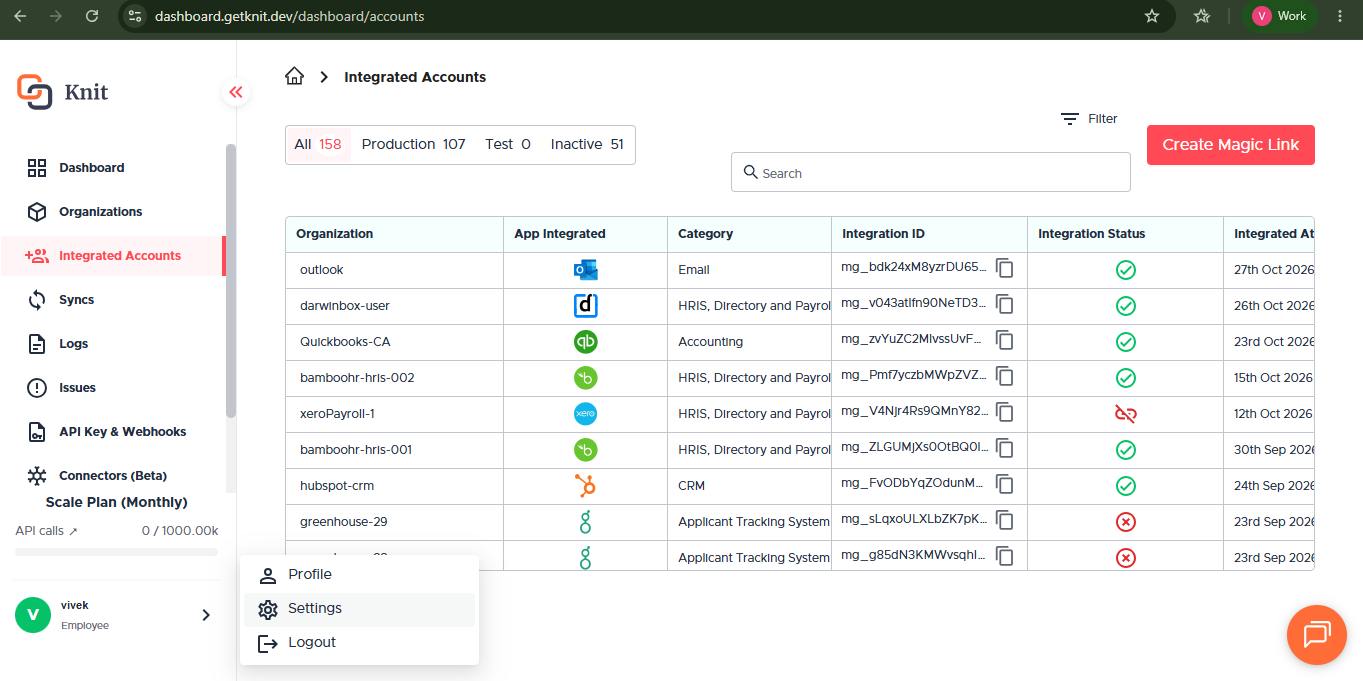
Log in to the Knit dashboard.
-
Navigate to
Settings→Mapping Presets.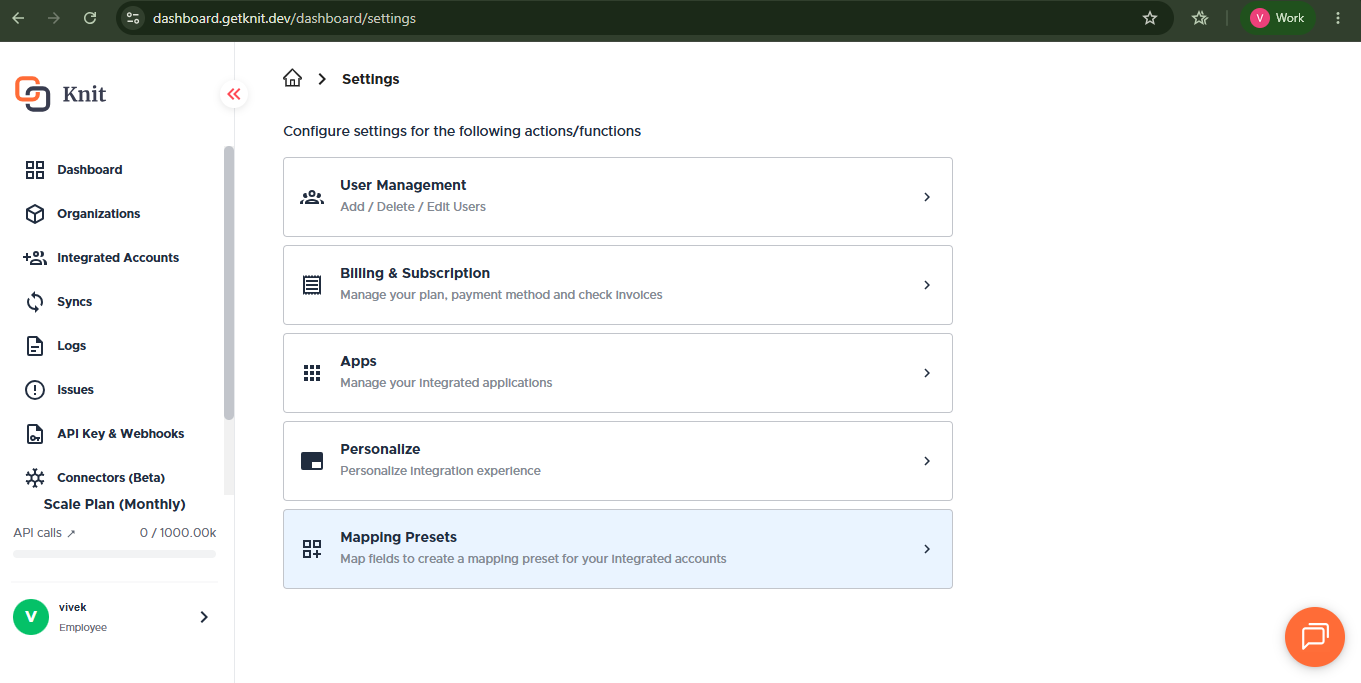
-
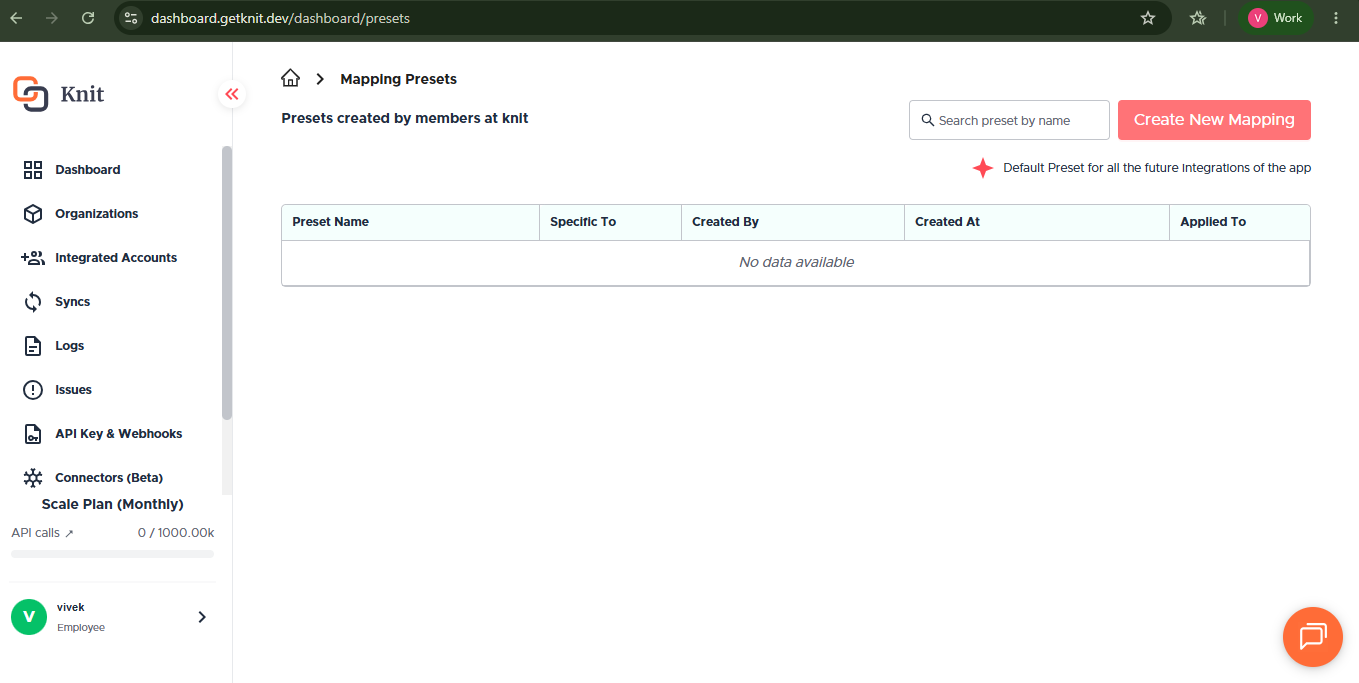
Click Create New Mapping.
-
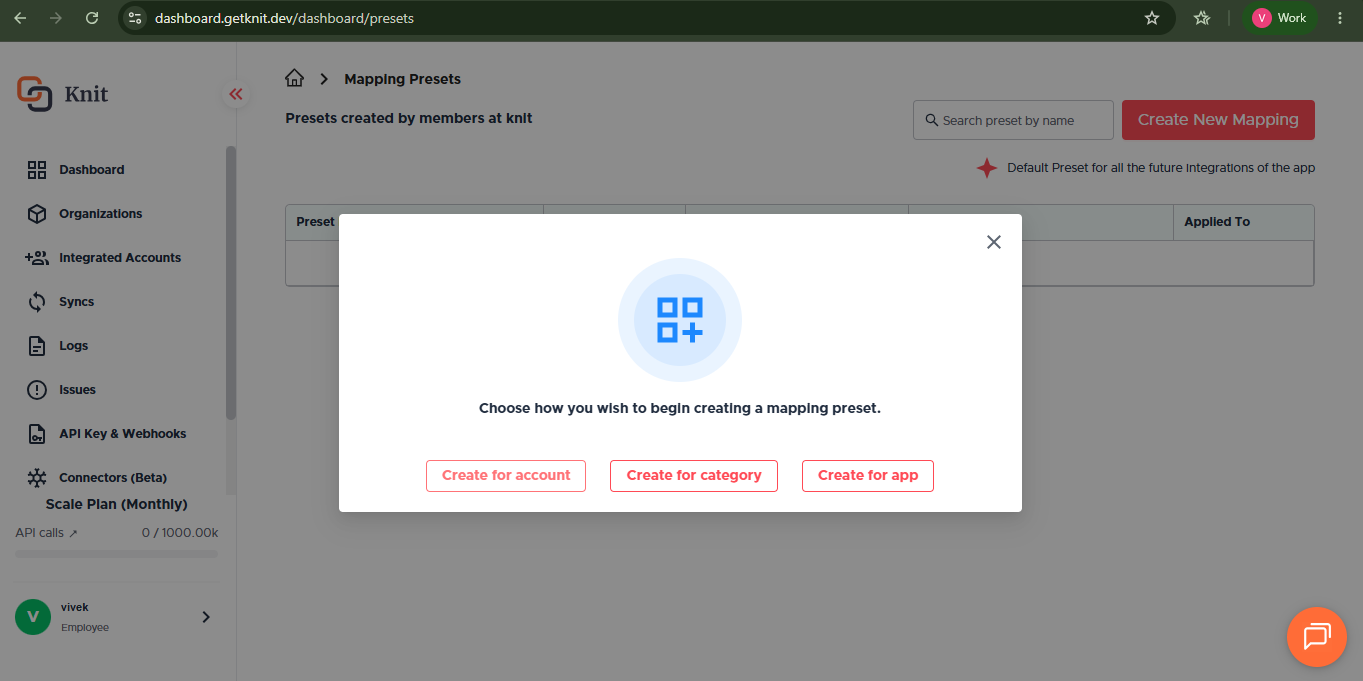
In the popup window, select one of the following options:
- Create for account
- Create for app
-
Select the Sync Type.
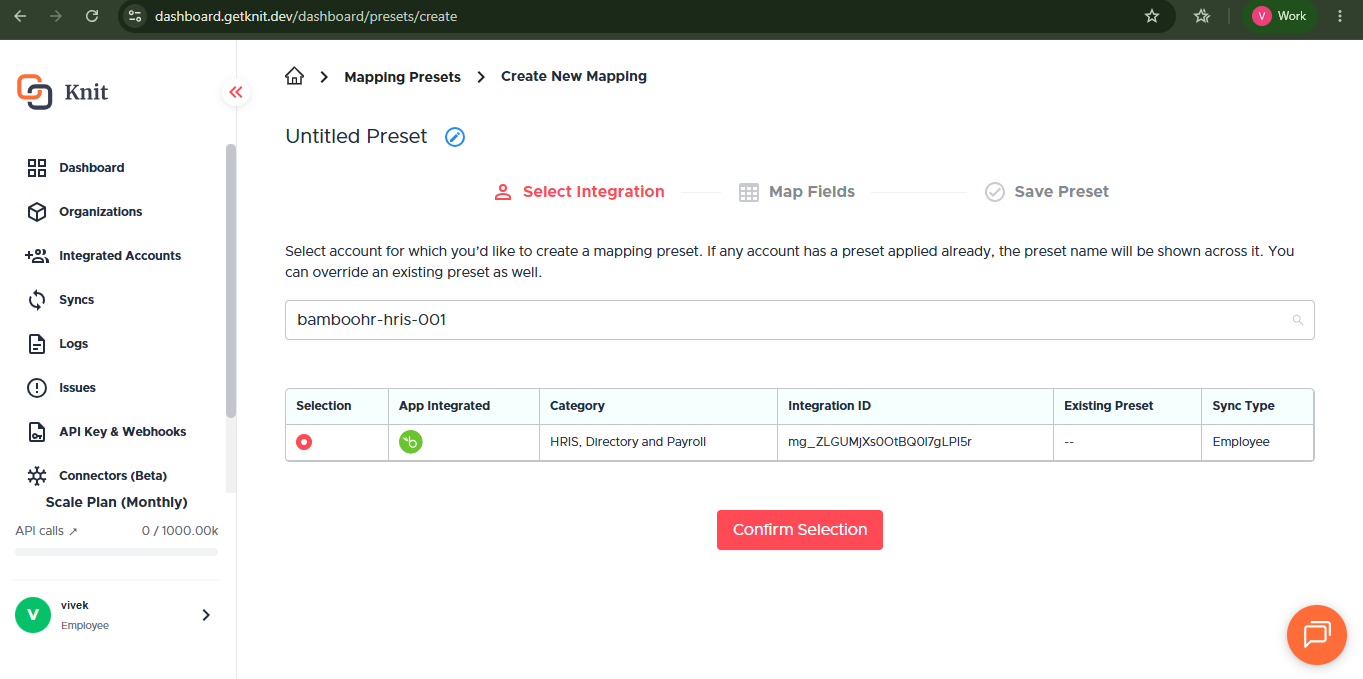
-
Fields with the data type ENUM can be mapped using Enum Mapping Presets. Configure the mapping by specifying the native field value and selecting the corresponding standard enum value from the dropdown.
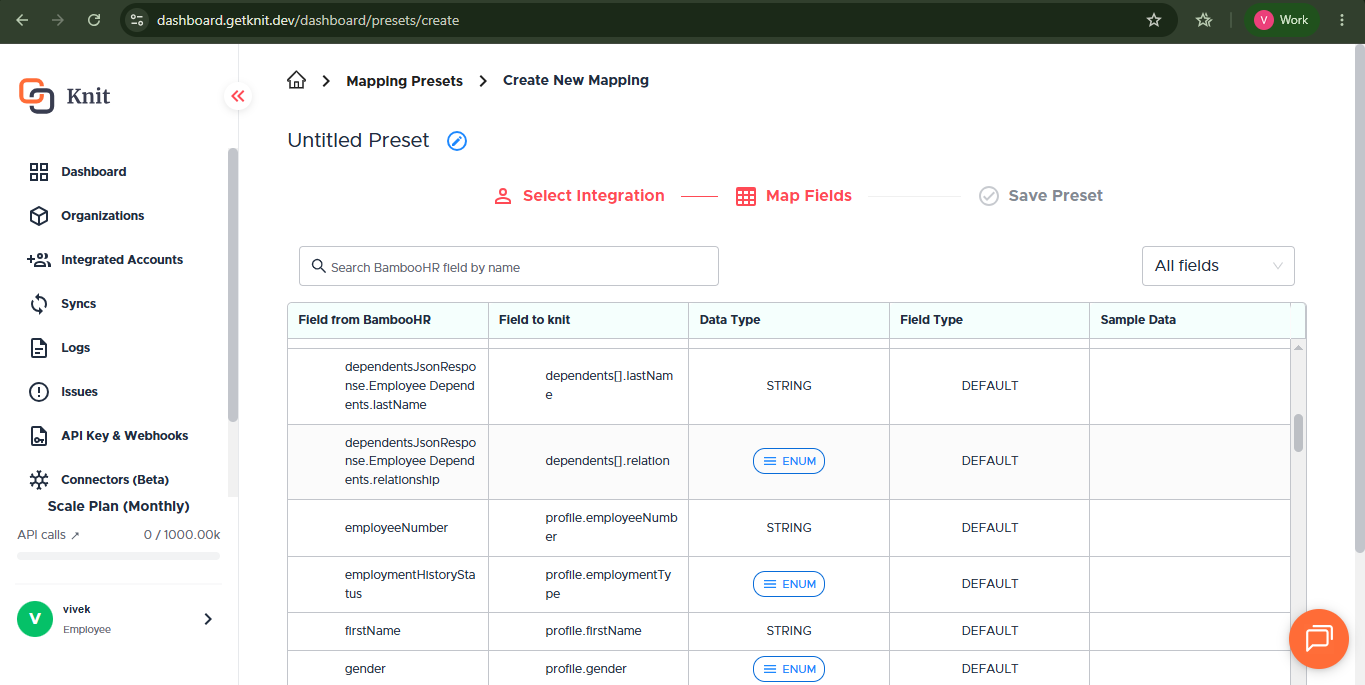
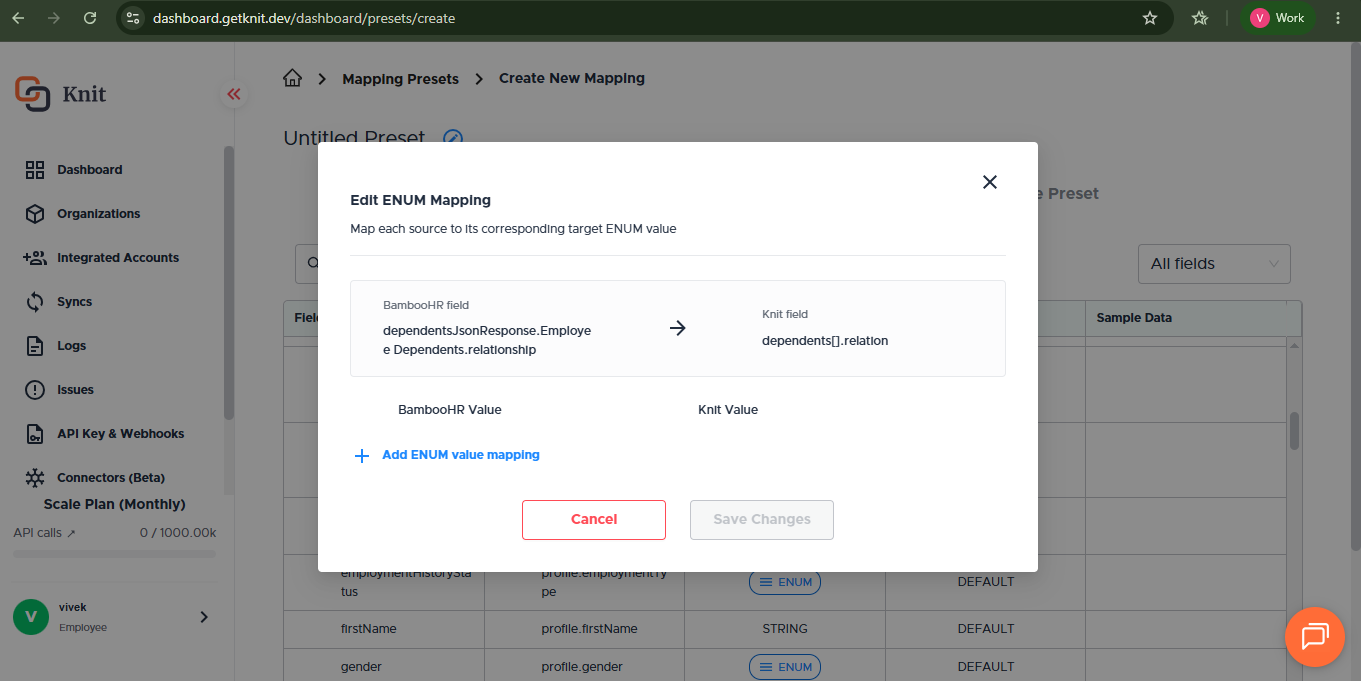
-
Save the mapping preset.
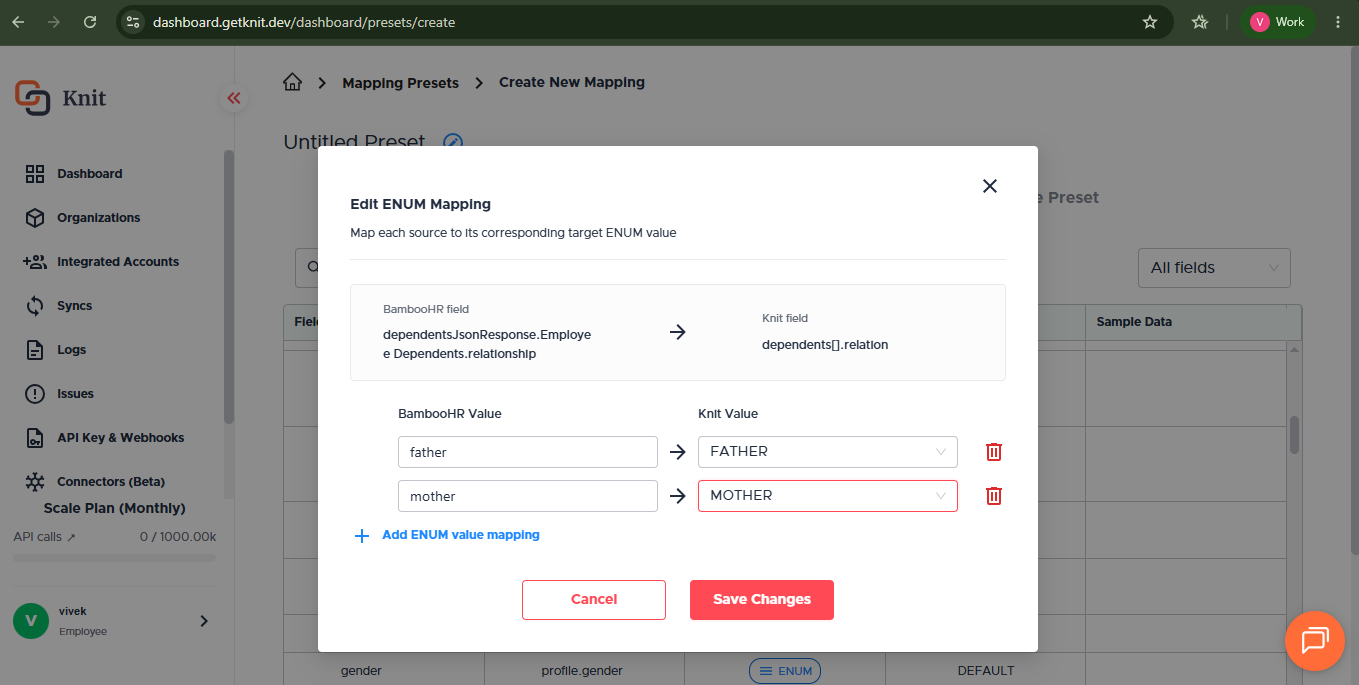
The configured mapping will override the default enum mapping according to the selected scope.
II. Using API
Using APIcurl --location 'https://api.getknit.dev/v1.0/enum.field.map' \
--header 'Authorization: Bearer <API_KEY>' \
--header 'X-Knit-Integration-Id: <INTEGRATION_ID>' \
--header 'Content-Type: application/json' \
--data '{
"syncType": "employee",
"fieldKey": "gender",
"rawValue": "W",
"mappedValue": "FEMALE"
}'Mapping Scope
Knit supports two scopes for enum mapping presets.
-
Use this option when you want to override an enum mapping for a specific integrated account.Create for Account- The mapping applies only to the selected integration.
- Other integrations of the same application remain unaffected.
- This option is useful when a particular account returns a native field value that requires a custom mapping.
Example: If you create an enum mapping preset for one BambooHR integration, the override applies only to that specific BambooHR integrated account. Other BambooHR integrations continue to use their existing mappings.
-
Use this option when you want to override an enum mapping for all integrations of a particular application.Create for App- The mapping applies across all integrations of the selected app.
- Responses from different integrated accounts of that app use the configured override.
- This option is useful when the same native field value needs consistent mapping across all integrations of an application.
Example: If you create an enum mapping preset for BambooHR at the app level, the override applies to all BambooHR integrations rather than just one specific account.
Updated about 2 hours ago
Did this page help you?